Short answer:
Skin tones go wrong because of bad white balance, aggressive LUTs, or over-saturation pulling hues away from natural skin. You’ll fix them in DaVinci Resolve using the vectorscope skin tone line as your target, then isolate skin with the Qualifier so your corrections never touch the rest of the frame.
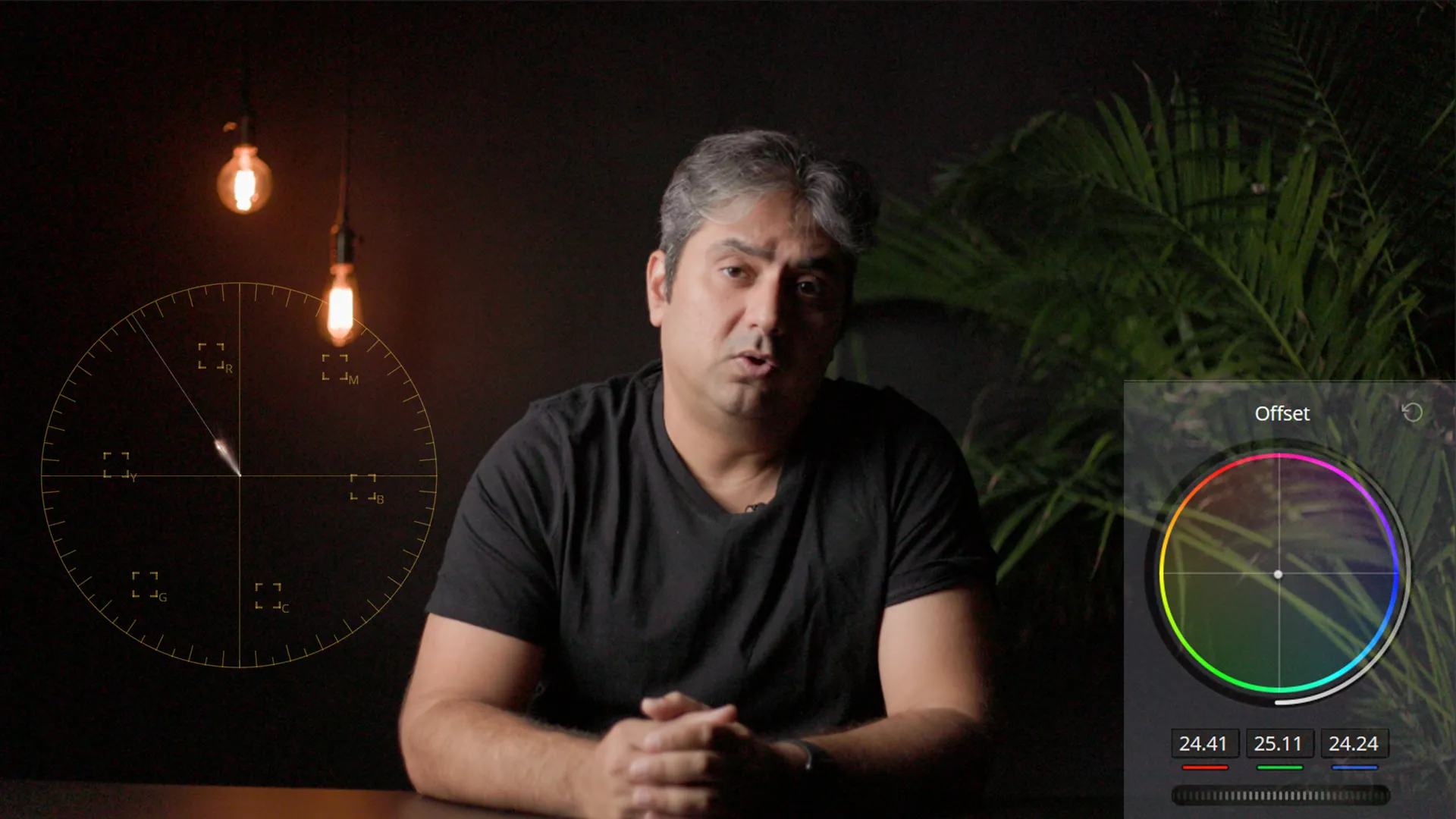
The vectorscope doesn’t lie. Your skin should sit along that diagonal line—not floating into orange, not drifting toward green. Pull your skin tones back onto that line first. Everything else follows from there.
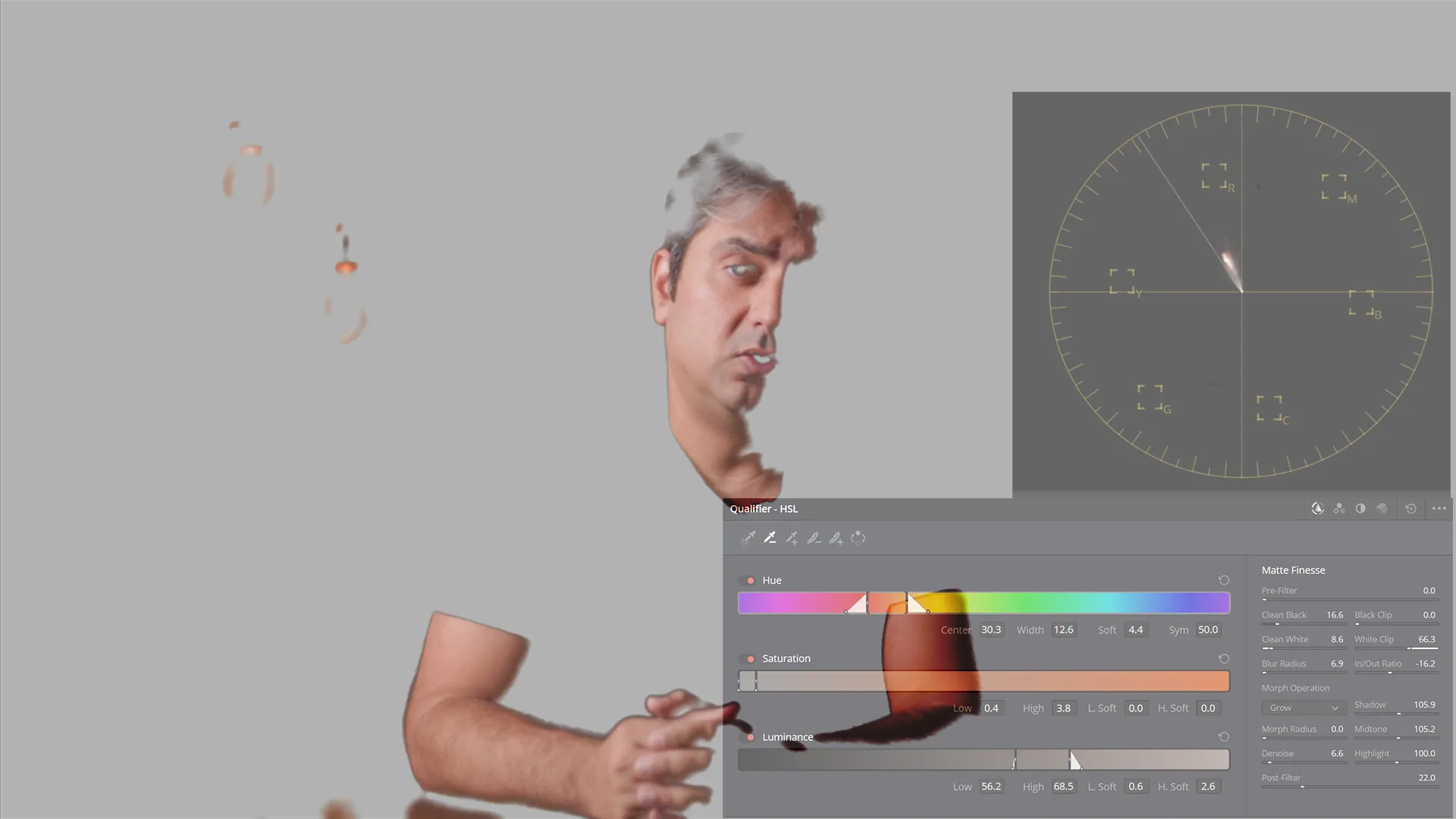
Now isolate. Drop a Qualifier node and sample directly off a face. You’re building a mask that only touches skin—this keeps your grade surgical. Adjust hue, saturation, and luminance without fear of wrecking your background.
White balance matters most. Get that wrong, and no vectorscope adjustment saves you. Shoot with proper kelvin, or nail your white balance in post before you touch anything else.
One more thing: aggressive LUTs are often the culprit. You don’t need a dramatic look to make footage pop—restraint reads as professional. Dial back saturation first, then rebuild it selectively. Your skin will thank you.
This works whether you shot on a log profile, applied a LUT, or’re juggling mixed lighting. The process stays identical.
Why Skin Tones Go Wrong in the First Place
Three culprits. Almost always one of these three:
- Wrong white balance — a cool WB pushes skin green or cyan. A warm WB pushes it red-orange past the natural range.
- Bad LUT application — LUTs that aren’t matched to your camera’s log profile shift every hue in the frame, including skin.
- Over-saturation — boosting global saturation past 60–65 on the parade scope blows skin into oversaturated territory fast.
The camera doesn’t lie about white balance. If your skin looks wrong, fix the white balance first — before you touch anything else.
Start with your primaries. Get your whites neutral on the parade scope. Then look at skin. You’ll fix 60% of problems before you ever touch a curve.
The Vectorscope Skin Tone Line — What It Is and How to Read It
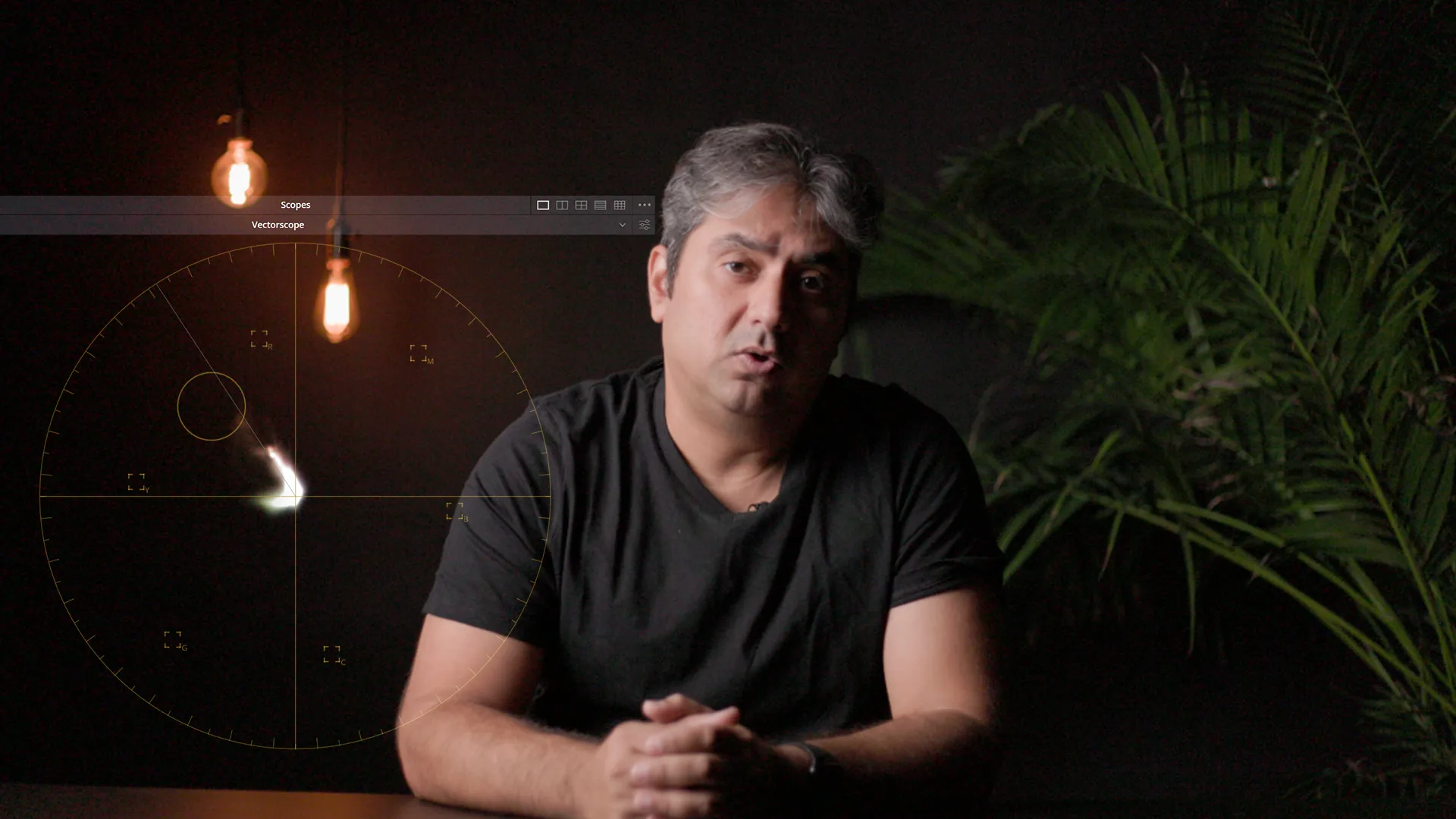
Open your vectorscope in DaVinci Resolve and find the diagonal line cutting from bottom-left to upper-right. That’s your skin tone line.
Every human skin tone lands on or hugs that line—doesn’t matter the ethnicity. Light skin and dark skin sit at different points along the same angle. The position tells you brightness. The angle tells you nothing.
- Left of the line → skin looks too green or cool
- Right of the line → skin reads too red, too warm, too magenta
- On the line but too far out → you’ve crushed the saturation
Check the vectorscope every single grade. Your monitor lie—mine do too, especially after 20 minutes of staring. The scope doesn’t.
If skin isn’t on or near that line, nothing else in your grade matters. Fix it first.
👉 Related: What Is HDR in Video, and How Do I Use It in My Workflow?
Method 1: Hue vs Hue and Hue vs Sat Curves for Quick Fixes
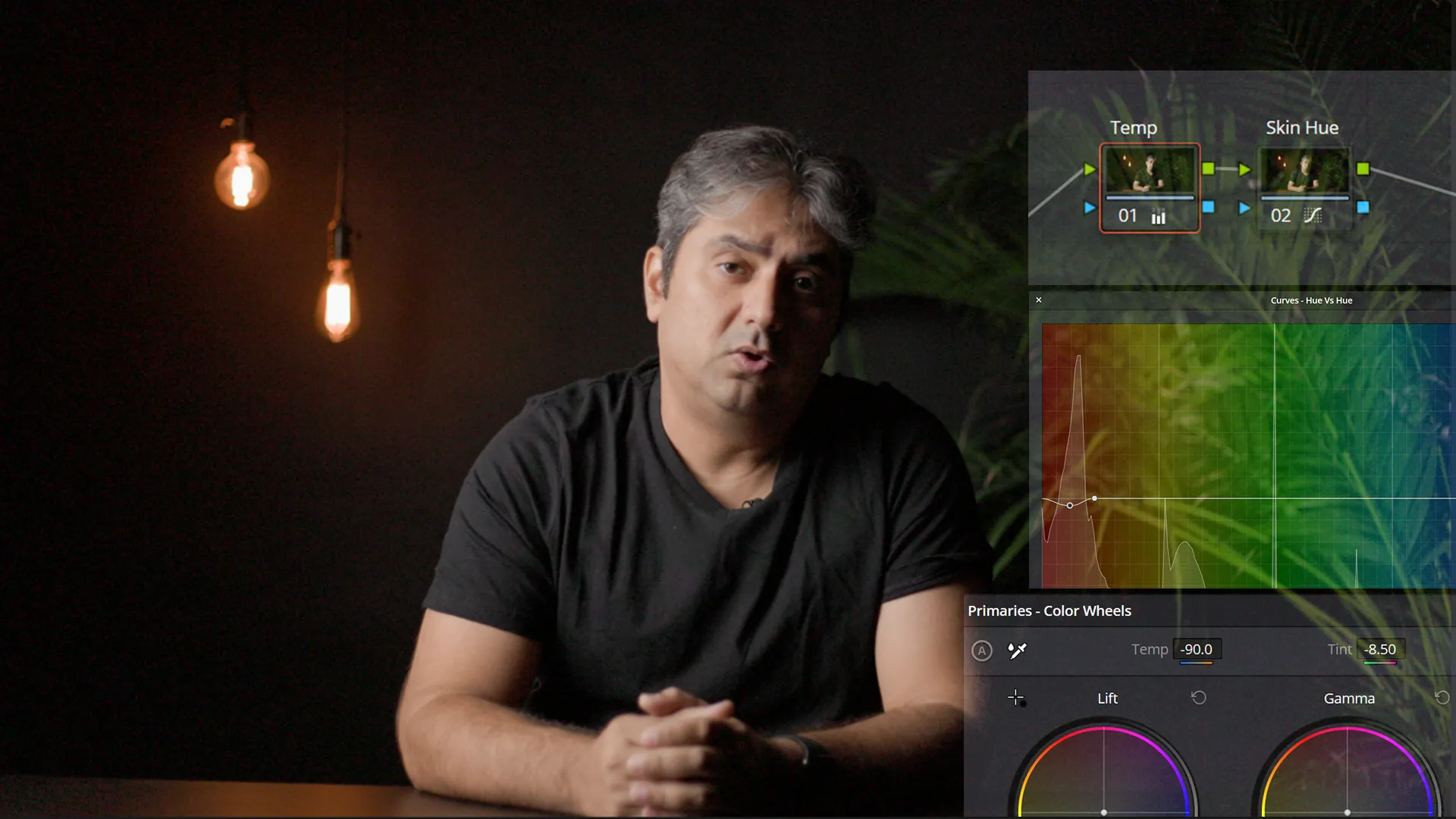
This is your fastest tool. No masking, no rotoscoping. Head to the Curves palette in the Color page and hit Hue vs Hue.
- Click the eyedropper and sample skin straight from the viewer
- Resolve plants a control point on the curve at that exact hue range
- Drag left to warm skin, right to cool it down
- Keep it subtle — a few degrees does the job
Then move to Hue vs Sat:
- Sample skin again with the eyedropper
- Drag the control point down to kill saturation in just that skin hue range
- This reins in over-saturated skin without touching sky, foliage, or clothing
Hue vs Hue and Hue vs Sat are non-destructive and instant. Use them first. Only grab the Qualifier if these curves fall short.
Check your vectorscope after every move. You want that skin cluster sitting on the line, not just looking good on your monitor.
Method 2: Qualifier to Isolate Skin — The Precise Fix
The Curves method breaks down fast — mixed lighting, weird skin tones, or a face that blends into the background. The Qualifier fixes all three.
Here’s what you do:
- Drop a serial node after your primary grade
- Hit the Qualifier panel (eyedropper icon in the toolbar)
- Sample skin directly from the viewer — click and drag across the full range of tones in the shot
- Turn on Highlight mode (icon next to the viewer) to see your matte in black and white
- Dial the Hue, Saturation, and Luminance sliders until only skin is selected — clean edges, zero spill into the background
- Tighten the key with Matte Finesse — Clean Black, Clean White, and Blur
Everything you adjust in this node now touches only the qualified area. Lift red. Spin the hue. Kill saturation. The rest of the frame stays untouched.
A sloppy qualifier key is worse than no key at all. Spend 3 minutes getting a clean matte before you move a single slider.
Want to move faster through the whole edit? Automate your rough cut in DaVinci Resolve — it’ll save you hours.
A Simple Recipe
- Step 1: Correct white balance in your primary node — get whites neutral on the parade scope first
- Step 2: Open the vectorscope and check where the skin cluster sits relative to the skin tone line
- Step 3: Use Hue vs Hue curve to push skin hue toward the line — sample with the eyedropper, adjust in single-digit degrees
- Step 4: Use Hue vs Sat curve to pull back over-saturated skin — drag the skin control point down until it sits inside the vectorscope box
- Step 5: If curves aren’t precise enough, add a new serial node and open the Qualifier — sample skin, refine the matte with Matte Finesse until edges are clean
- Step 6: Make skin corrections inside the qualified node — hue, saturation, lift as needed
- Step 7: Build your creative grade in a separate parallel node so skin corrections stay protected
- Step 8: Check the vectorscope again after every major adjustment — skin cluster should stay on or very close to the skin tone line throughout
The Big Truth
Skin tones are fixed with scopes, not your eyes—trust the vectorscope skin tone line, not your monitor.
Your eyes lie. Your monitor lies harder. A vectorscope doesn’t lie at all.
You’ll see pros nail skin tones by watching that thin diagonal line cross the vectorscope display. That’s your flesh tone reference. It sits between red and yellow, and it’s mathematically precise—which means you can reproduce it shot to shot, monitor to monitor, room to room.
Your display? It drifts. The room lights change it. Your eyes adjust without you noticing. You think you’ve matched a skin tone, then you export and the client says it’s orange on their screen. This happens because you trusted what you saw instead of what the scope told you.
Start reading your vectorscope as seriously as you read your waveform. Position skin tones along that diagonal flesh tone line. Nail it there, and your work travels. It holds up in any viewing environment. That’s the whole point—repeatability beats gut feeling every single time.
Open the vectorscope on your next grade before you touch a single slider and let it tell you what’s actually wrong.