Short answer:
Start every grade by telling DaVinci Resolve what colour space your footage lives in. Without it, every adjustment you make crumbles. Colour Space Transform (CST) nodes do the heavy lifting — they convert your camera’s flat log image into something you can actually work with.
This post covers what beginner tutorials skip — and it’s why your grades look muddy or inconsistent.

Why Colour Spaces Matter Before You Touch a Single Wheel
Your camera doesn’t record what your eyes see. It records a log or raw signal — a flat, low-contrast image designed to preserve maximum dynamic range. That signal lives in a specific colour space: Sony shoots S-Log3/S-Gamut3, Canon shoots C-Log3, Blackmagic shoots BRAW in Film or Extended Video.
Open that footage in DaVinci Resolve and start pushing contrast and saturation without telling Resolve what it’s looking at, and you’re grading blind. The colours will shift wrong. Skin tones will fall apart. Your grade won’t translate cleanly to export.
Colour management isn’t a feature. It’s the foundation. Get it wrong and everything after it is wrong too.
The good news: once you understand what a colour space actually is, the whole system clicks.
- Input colour space — what your camera recorded (S-Log3, C-Log3, BRAW Film)
- Timeline colour space — the working space where you grade (DaVinci Wide Gamut is ideal)
- Output colour space — what the viewer sees (Rec.709 for web, DCI-P3 for cinema)

What a CST Actually Does (Plain English)
A Colour Space Transform (CST) is a node that mathematically converts footage from one colour space to another. It’s not a LUT. It’s not a creative grade. It’s a technical translation.
Think of it like currency exchange. Your footage arrives in S-Log3 dollars. Your timeline works in DaVinci Wide Gamut euros. Your export needs Rec.709 pounds. The CST nodes are the exchange booths at each border.
You’ll use two CSTs in a basic node tree:
- First node (Input CST) — converts from your camera’s log space into DaVinci Wide Gamut / DaVinci Intermediate for grading
- Last node (Output CST) — converts from DaVinci Wide Gamut back down to Rec.709 for delivery
Everything you do creatively — contrast, saturation, colour balance, your look — happens in the nodes between those two CSTs.
A CST doesn’t grade your footage. It makes your footage gradeable.
👉 Need to know how HDR fits into this? Read What Is HDR in Video, and How Do I Use It in My Workflow?

Alternative – The RCM way
Get your project settings locked in before you touch a node. Go to File → Project Settings → Colour Management.
For a log-based workflow, dial these in:
- Colour science: DaVinci YRGB Colour Managed — or Scene-Linear if you want full control via RCM
- Timeline colour space: DaVinci Wide Gamut / DaVinci Intermediate
- Output colour space: Rec.709 (YouTube, Vimeo, client work)
Using Resolve Colour Management (RCM)? Resolve does the heavy lifting automatically — tag each clip’s input colour space and you’re done. Right-click a clip in the Media Pool → Input Colour Space → pick your camera profile.
Want more control? Build your own CST node tree instead. Disable automatic colour management and construct the pipeline yourself.
Skip this and you’ve already lost. Jumping straight to nodes without setting your colour science first is how beginners sabotage their entire grade.
This tutorial walks you through the full setup with RCM step by step:
Color Management For Beginners: How To Get Started Fast →
Your First Node Tree: Simple, Repeatable, It Works
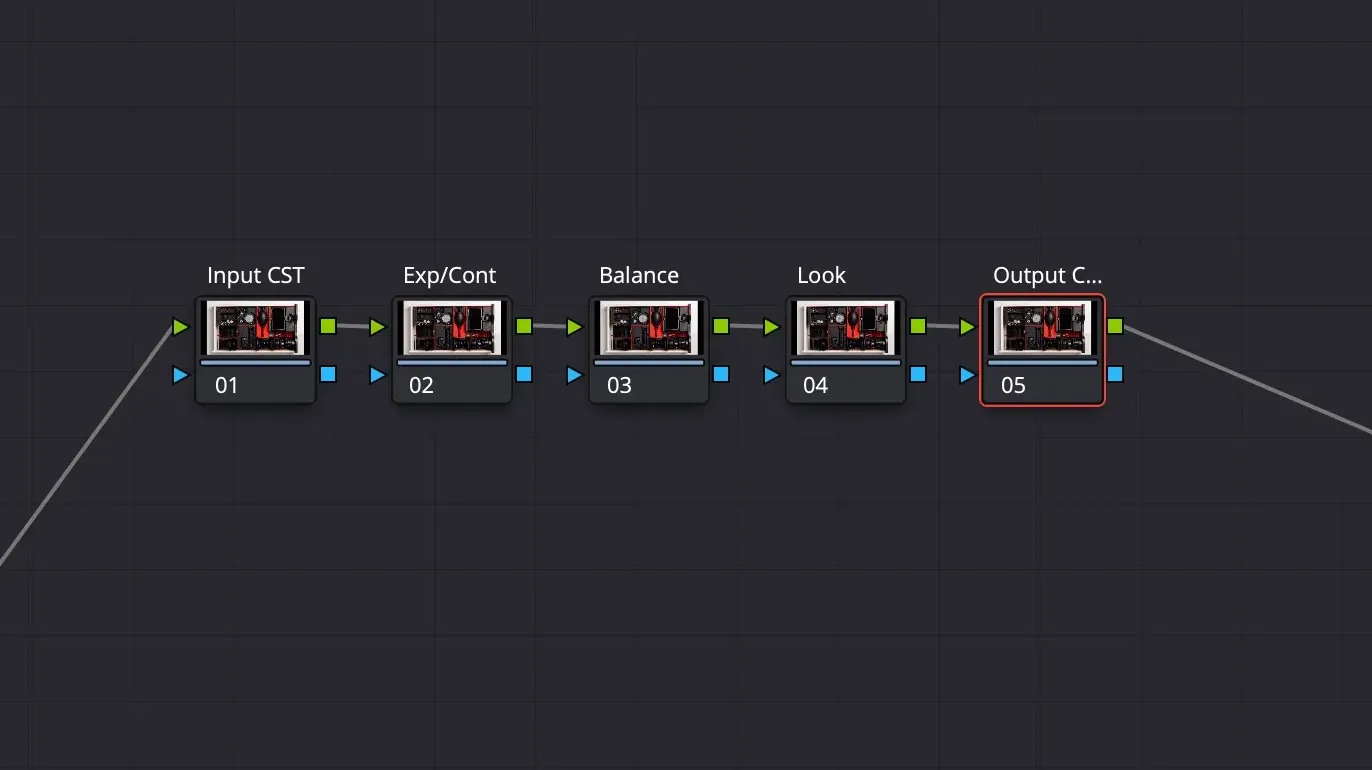
Here’s the node structure I use on almost every clip. Five nodes. Each one does exactly one job.
- Node 1 — Input CST: Convert from your camera log space into DaVinci Wide Gamut Intermediate
- Node 2 — Exposure and Contrast: Use the Lift/Gamma/Gain wheels or Custom Curves. Set your blacks, mids, and highlights here. Don’t touch colour yet.
- Node 3 — White Balance and Colour Balance: Fix any colour cast. Use the Log Wheels or the Colour Warper. Get skin tones neutral before you add any look.
- Node 4 — Creative Look: Add your grade here. Push contrast, colour grade, apply a LUT if you’re using one. This is where your style lives.
- Node 5 — Output CST: Convert from DaVinci Wide Gamut Intermediate back to Rec.709 for delivery.
Keep each node doing one thing. Mix exposure and colour correction in the same node and you’ll spend 20 minutes undoing your own work when something doesn’t look right.
One node, one job. That’s the rule that keeps grading sessions fast and reversible.
👉 New to the colour page altogether? Start with How Do I Create Cinematic Looks on a Budget? for the fundamentals before diving into node trees.
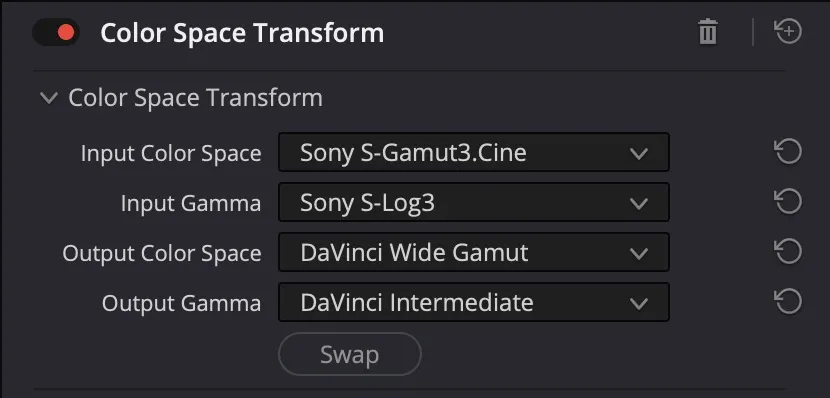
Input CST node
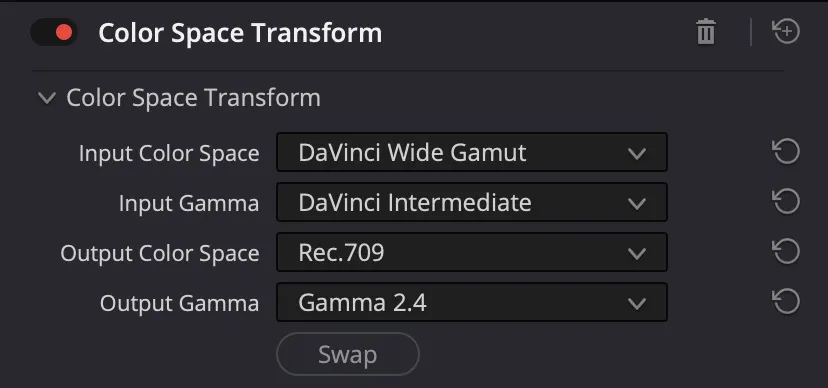
Output CST node
A Simple Recipe
- Go to File → Project Settings → Colour Management and set your colour science to DaVinci YRGB
- Set Timeline Colour Space to DaVinci WG / Intermediate
- Set Output Colour Space to Rec.709 Gamma 2.4 for web delivery
- In the node graph, create Node 1 as a CST: Input – your camera log space → Output – DaVinci Wide Gamut & Gamma – DaVinci Intermediate
- Add Node 2: adjust exposure and contrast only — use Lift/Gamma/Gain or Custom Curves
- Add Node 3: fix white balance and colour neutrality — get skin tones right before any creative work
- Add Node 4: apply your creative look or LUT here
- Add Node 5 as a CST: DaVinci Wide Gamut & Intermediate → Rec.709 & Gamma 2.4
- Check your Waveform scope — make sure output sits between 0 and 100 IRE with no clipping
- Export and review on a second screen or device to confirm the grade holds
The Big Truth
Colour grading isn’t about flexing aesthetic choices—it’s about protecting your intent. What you captured on your sensor means nothing if it arrives on someone’s screen transformed into something you didn’t make.
Set up your colour management first, every time, on every project — then grade. Skip this and you’ll spend hours chasing phantom colour shifts that don’t exist in the first place.
Your monitor needs a LUT. Your delivery codec needs a LUT. Your timeline needs a LUT. Without matching working spaces across all three, you’re grading in the dark — literally looking at different colour information on each surface.
I start every project the same way: calibrate the monitor, load the correct LUT into my timeline software, verify my delivery settings match my shooting colour space. Takes 10 minutes. Saves 20 hours of second-guessing later.
The mistake most people make is jumping straight to the colour wheels. You’ll push a shadow up, see it pop on your monitor, then watch it disappear when you export. That’s not a grade problem. That’s a setup problem.
Get the plumbing right first. Then your creative decisions actually stick.